Data Download: Accessing the Collected Data
There are two options to download your data. The first option is to use the internal download option in the Project Hub. The second one is to download the data through the API.
Download Donations Through the Project Hub
Downloading the data through the Project Hub is a two-step process.
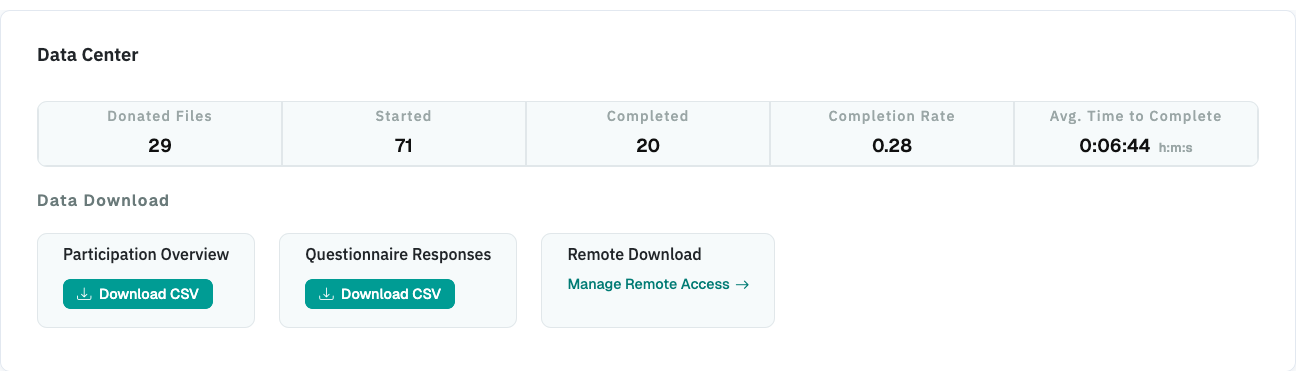
First, go to the Project Hub, scroll down to the section "Data Center" and download the Participation Overview:
This will download a CSV file containing one row for every participant that has started participation in the project (i.e., this also contains participants that have not completed the donation). The file includes the following variables:
| Variable/Column | Description |
|---|---|
| participant_id | The ID of the participant. |
| start_time | Date and time in ISO 8601 format when the participant first accessed the project (e.g., "2024-07-16 20:30:40.863581+00:00"). |
| end_time | Date and time in ISO 8601 format when the participant accessed the debriefing page of the project (e.g., "2024-07-16 22:25:30.1634581+00:00"). |
| current_step | The last step of the participation flow that the participant has accessed ("1" = Briefing page, "2" = data donation step, "3" = questionnaire, "4" = debriefing page). |
| completed | Indicates whether the participant has completed the participation (True/False). |
| extra_data | Contains any extra data recorded in relation to a participation (e.g., extracted URL parameters). |
| bp- |
The name of the blueprint with ID "X". |
| bp- |
Date and time in ISO 8601 format when the participant has submitted their donation for blueprint X. |
| bp- |
Indicates whether the participant has consented to the donation of their data related to blueprint X. True = consent, False = no consent. |
| bp- |
Indicates the status of the participant's donation in relation to blueprint X ("DATA_EXTRACTED" = donation was successful, "NOT_ATTEMPTED" = data donation step reached but donation not attempted, "FAILED" = donation attempted but donation failed due to an error, "NO_DATA_EXTRACTED" = all data filtered out) |
| bp- |
The number of entries detected in the donated data (depending on the data structure, this value may underestimate how many entries the donation actually contained). |
| donation_download_link | A link though which the donation for the participant can be downloaded. Can be opened in the browser where you are logged in to DDM. |
Next, you can download the data donations for each participant through the donation download link.
Note
For larger donation projects where you collect data donations from many participants, it may be more convenient to download the data donations through the API (see below).
Download Questionnaire Responses Through the Project Hub
To download the questionnaire responses as a csv table, go to the Project Hub, scroll down to the section "Data Center" and download the file by clicking on Download CSV:
Download via API
To download your data via the API, you first have to create an API token. You can do so by going to the "Data Center" section in your Project Hub, and then clicking on "Manage Access Token". In the page that opens you can create an API token that is used to authenticate your external download request.
A list of available API endpoints and a more detailed description on how to use them can be found in the API section of the documentation.
Tip
A project can only be accessed through the Researcher Interface by the user who created it. This means that the internal download is only accessible for a project owner. The API token, on the other hand, can be used to share data access with colleagues working on the same project. However, be careful with whom you share this token as it exposes the sensitive data collected from participants. We recommend choosing a short expiration date for Tokens that you create.